Documentation
Everything you need to know about setting up and getting the most out of OptionV.
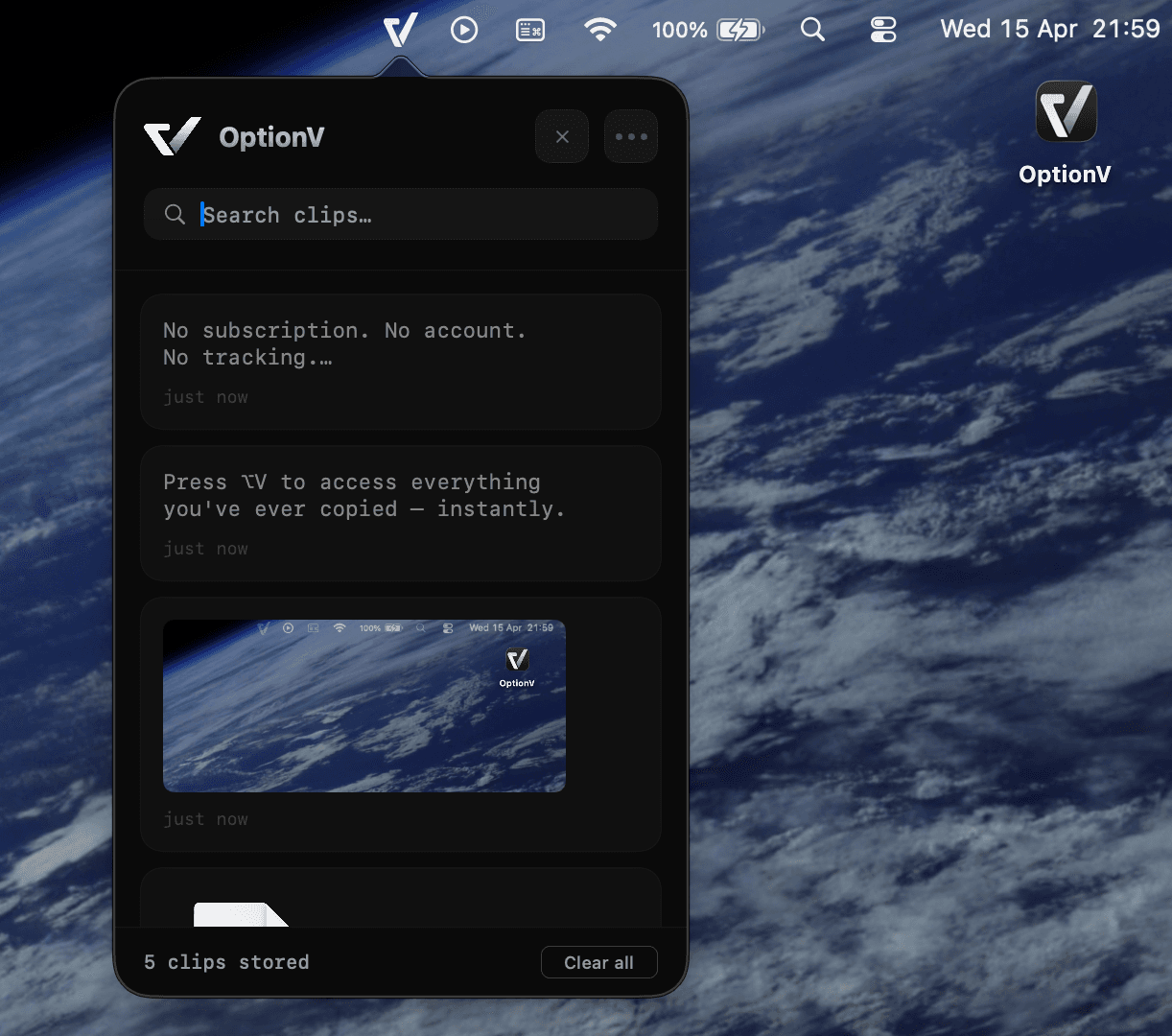
Menubar Mode
The classic, lightning-fast overlay you know and love.
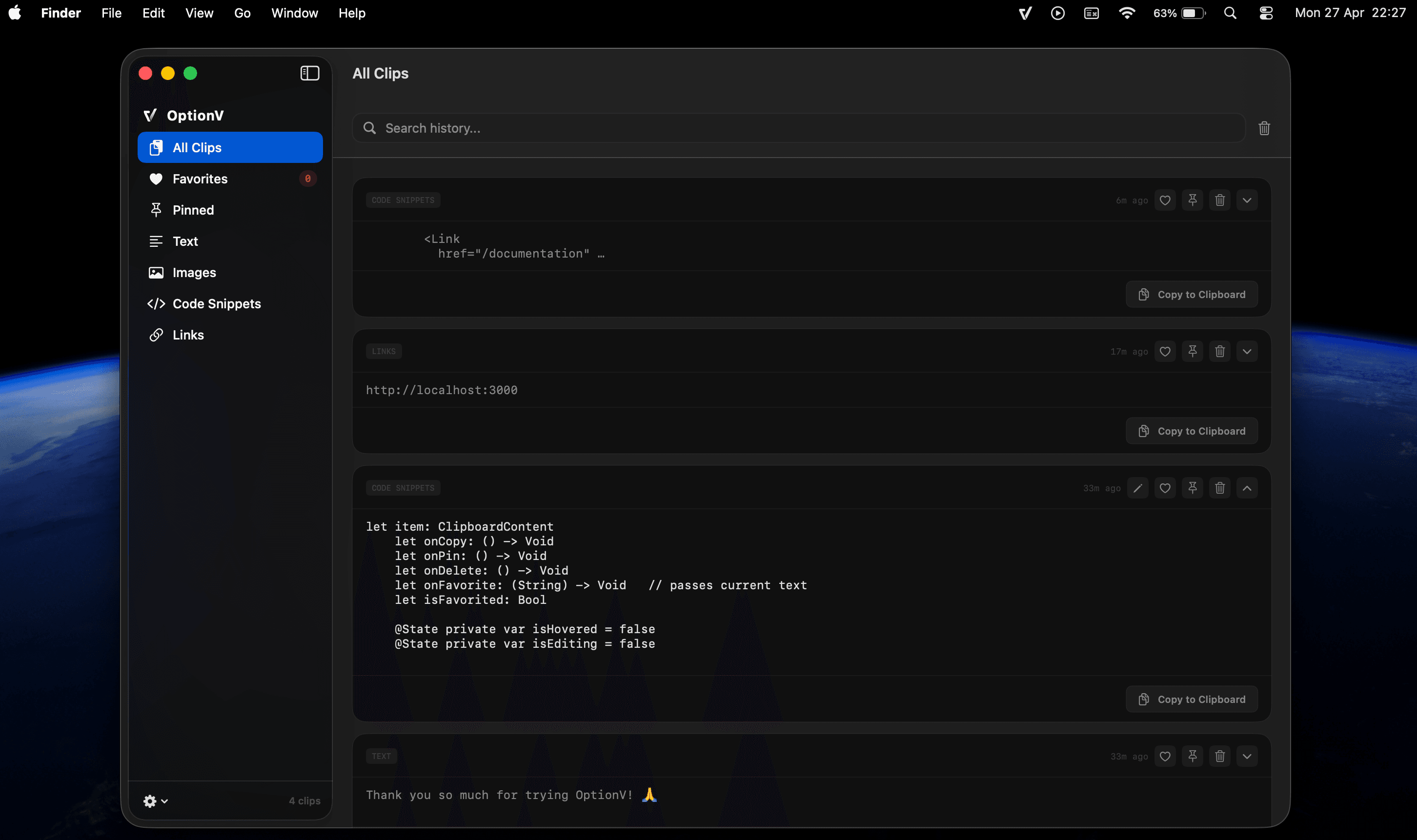
Full Dashboard
Manage your entire clipboard history in a beautiful, expanded interface.
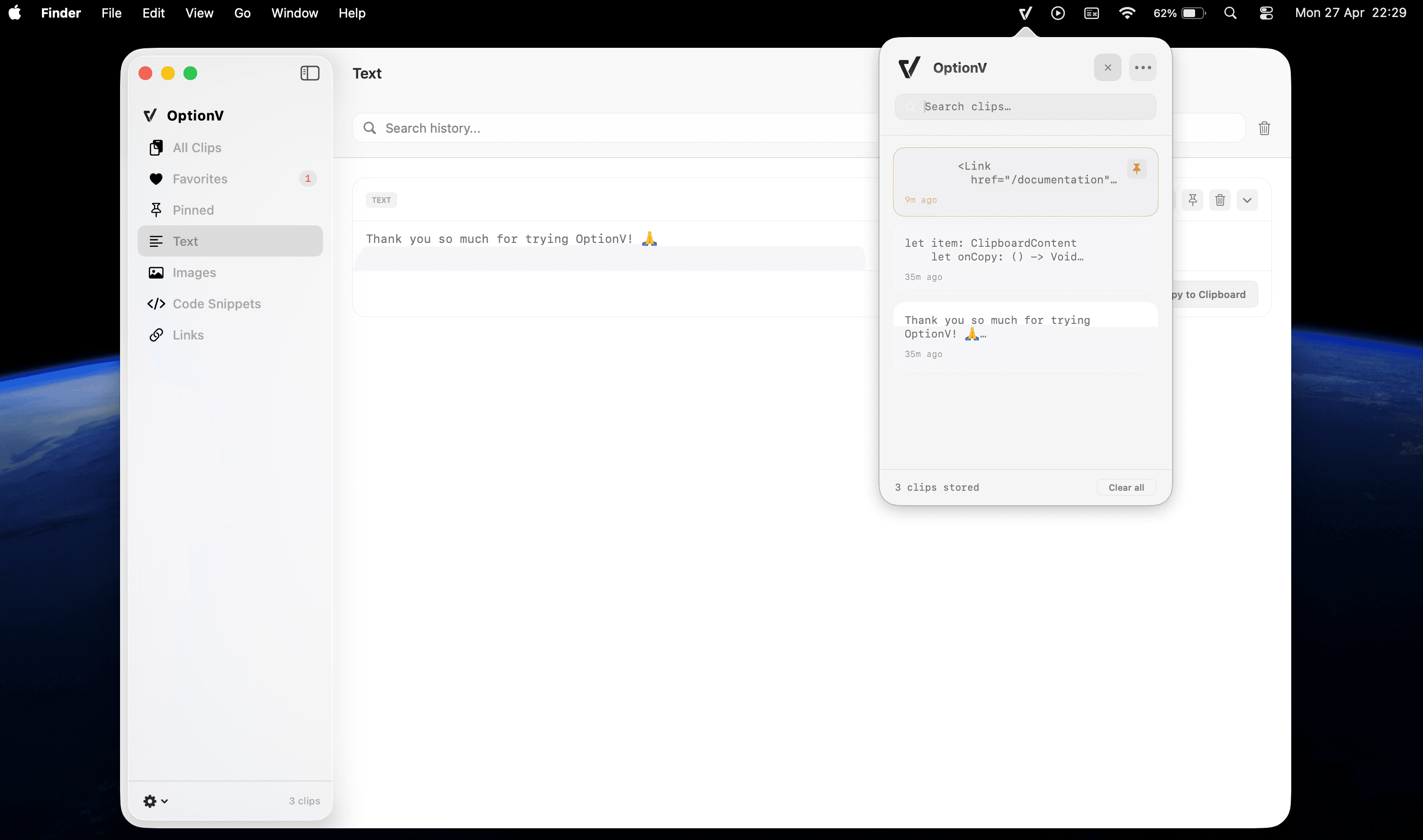
Smart Categorization
Organize your clips automatically with our new smart tagging system.
What's New
Major performance and UI overhaul — v1.4.0
Full Dashboard
Expand from the menubar to a full-featured workspace to manage your history.
Inline Editing
Edit any clip directly within OptionV before pasting it into your apps.
Collections
Organize snippets into persistent categories for instant retrieval anytime.
Adaptive UI
Refined dark and light modes that respect your system appearance settings.
Installation
To install OptionV, download the latest version and drag the application into your/Applications folder.
Hardware
- Apple Silicon (M1, M2, M3, M4)
- Intel-based Mac support included
Software
- macOS 13.0 Ventura or later
- Accessibility permissions required
Quick Start
Copy
Just copy text or images like you normally do using ⌘C.
Summon
Press ⌥V to bring up your clipboard history instantly.
Paste
Select any item to paste it back into your active application.
User Cases
Developers
Stop losing code you just copied.
You copy a Stack Overflow answer, then a variable name, then an error message. Now you need that original answer — it's gone. OptionV keeps your entire session preserved.
- Save API keys and tokens without losing the previous one
- Pin boilerplate code snippets permanently
- Copy error messages and Stack Overflow answers simultaneously
- Switch between terminal commands instantly
- Keep database connection strings pinned for quick access
- Copy multiple file paths without retyping
"You're debugging a production issue. You copy the error, copy a fix from Stack Overflow, copy your API endpoint — press ⌥V and everything is right there."
The Solution
Brand Story
The Genesis
OptionV was born from a simple frustration: macOS lacks a native clipboard manager that feels as fast and integrated as it should. We built the tool we wanted to use every day — minimal, extremely fast, and strictly local.
Visual Language
Our aesthetic is defined by contrast. Pure blacks, silver tones, and a single warm gold accent. We follow the principles of modern macOS design: translucency, precision, and smooth animations.
Core Palette
Harvest Gold
#C8973A
Pure Black
#000000
Silver
#D1D1D1